How to use the database page to find and pin views
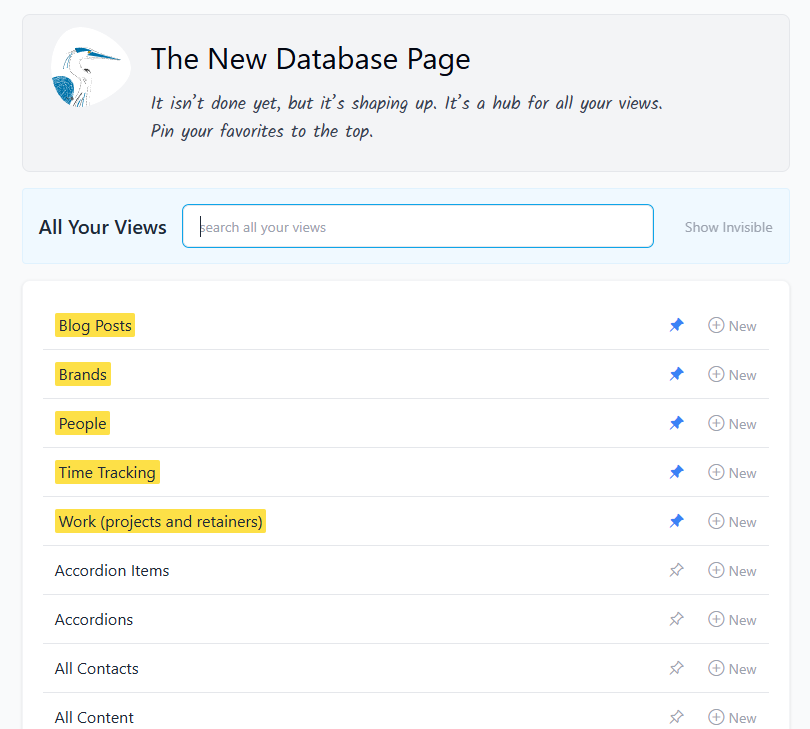
1. Open the Database Page
- Navigate to the Database section in the main menu.
- You’ll see a list of all views available to your account.
2. Search for a View
- Use the search bar at the top to quickly find a specific view.
- You can also toggle Show Invisible to include views that are normally hidden.
3. Pin Your Favorite Views
- Click the pin icon next to a view to keep it at the top of your list.
- Pinned views appear in a highlighted section, making them easier to access.
- To unpin a view, click the pin icon again.
4. Add a New Record (Admin Only)
- If you have administrator permissions, you’ll see a + New button next to each view.
- Click + New to create a new record directly in that view.
- Fill in the required fields and save your entry.
Tips
- Pinning is personal—only you see your pinned views.
- Use pinned views for frequently accessed lists like People, Blog Posts, or Time Tracking.
- Search is especially helpful if you have dozens of views
No results found

